






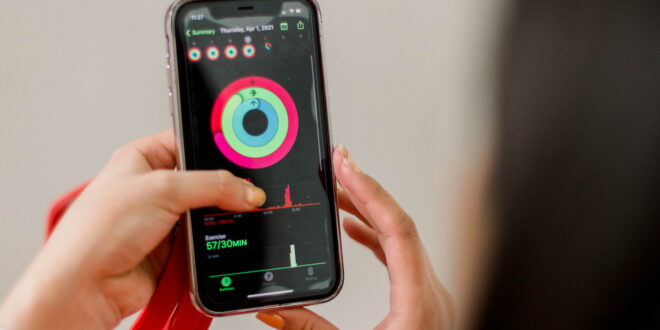
Smartphones often get a bad rap as being “too complicated” or “just for the kids,” yet the truth is they can make life simpler, safer, and healthier without you needing to be a tech whiz. Over the next few months, we will explore handy, often-overlooked features tucked inside your phone. From health tools to reminders, camera tricks to weather updates, discover small ways your phone can quietly support daily life. Today we start with one of the most important topics of all: your health. Smartphones are not a replacement for medical care, although they can be a helpful companion which nudges you to move a little more, remember important routines, and keep key information close at hand.
Step Counting Made Simple
Most modern smartphones include a built-in step counter. On iPhones it lives in the Health app; many Android phones use Google Fit or Samsung Health. Keep your phone in a pocket or bag when you walk and it will quietly log your steps. Seeing your steps throughout the day can be a friendly push to move a little more. There is no need to chase a perfect target; aim to notice your usual number and nudge it upward when you can. If you like, set a daily goal inside the app so it celebrates progress. To view steps, open your health app and look for “Steps” or “Activity.” If nothing shows, check permissions: on iPhone, open Settings → Privacy & Security → Motion & Fitness and make sure “Fitness Tracking” is toggled on; on Android, open your health app’s Settings and allow activity tracking.
Optional tip for iPhone users: If you’d like to see your steps without opening the app, you can place a small box on your Home Screen that updates automatically. To do this, press and hold an empty spot on your Home Screen, tap Edit Home Screen, then tap Add Widget at the top of the screen. Scroll to Fitness (or Health), swipe to find the widget that shows Steps, tap Add Widget, place it where you like, and tap Done. If Steps don’t appear, open the Health app → Browse → Activity → Steps → Add to Favourites, then try adding the widget again.
Think of your step count as a private coach that never nags but quietly encourages you to move a little more each day. Even small changes, like a short walk after lunch, can make a noticeable difference to energy and wellbeing.
Sleep Tracking and Daily Habits
Many phones can estimate sleep and show activity summaries. Place your phone near your bed and it can record sleep time, or pair a simple smartwatch or fitness band for more detail. You may also see gentle “wind-down” reminders at night and smart alarms in the morning. Treat these as guides rather than grades. Focus on patterns: do you sleep better on days you walk more, or worse after late-night TV? Some health apps let you log simple habits such as water intake, stretching, or breathing exercises. Choose one small habit and track it for a week. If the data helps you make a small change—going to bed 15 minutes earlier, taking a short afternoon stroll—it’s a win! If numbers ever feel discouraging, reduce what you track and use the features that genuinely support your routine.
How to Check if Your Phone Tracks Sleep
On iPhone:
Open the Health app.
Tap Browse at the bottom, then select Sleep.
If you see data like “Time in Bed” or “Sleep Duration,” your phone is tracking sleep.
If nothing appears, you may need to set up Sleep: tap Get Started or Add Schedule and follow the prompts. The phone can then monitor sleep automatically when your device is near you at night.
On Android:
Open Google Fit or your phone’s default health app (some Android phones use Samsung Health).
Look for Sleep in the app menu.
If sleep tracking is available, you may need to grant permission and leave your phone on the bedside table or pair it with a smartwatch or fitness band.
Tip for beginners: Sleep tracking doesn’t have to be perfect to be useful — even approximate data helps you see patterns, like whether you’re consistently getting enough rest or going to bed late.
Medication and Health Reminders
One of the most practical uses of a smartphone is helping you remember medication, appointments, or small daily tasks. You can set reminders for taking pills, drinking water, or checking blood pressure, as well as schedule appointments or recurring health checks. Even simple reminders can take the pressure off your memory and help you stay independent. For those of you who are unsure how to do this, we will explain all in our next article, walking you step by step through creating reminders and calendar events on your phone.
Safety Features Worth Knowing
Many smartphones include built-in safety options that can provide real peace of mind. For example, Emergency SOS can quickly call emergency services if you need help, Medical ID allows first responders to see important health information like allergies or conditions, fall detection on some devices can alert contacts if a hard fall is detected, and location sharing lets a trusted person know where you are in case of an emergency. These features can be very helpful, but we won’t go into all the setup details here. For those who want step-by-step guidance, you can visit Apple Support if you have an iPhone, or Google/Samsung Support if you have an Android device. You can also ask a trusted family member or friend to assist you with setup — a little help is often all that’s needed to get started.
Helpful Tips for Comfort and Privacy
If health tracking feels a little intrusive, you can tailor your phone settings to suit your comfort. Keep step tracking on while turning other features off, or store data only on your device rather than backing it up to the cloud. Set quiet hours so reminders do not buzz during naps or movie nights. Increase text size and turn on high-contrast mode to make reading easier. Many phones also include a Magnifier, a built-in feature that acts like a digital magnifying glass. You don’t need to take a photo first — just open the Magnifier, point your camera at small text or details, and zoom in. You’ll find it especially useful for reading tiny print on medicine bottles, menus, or labels. On iPhones, you can access it via the Control Center or by adding it to your Home Screen; on most Android phones, check the Accessibility settings for a similar magnifying tool. Try using the search function if you are unsure where to find the magnifier
Place the Health or Fit app on your Home Screen for easy, one-tap access, and use a passcode or biometric lock to protect your information. Deleting entries is simple if you change your mind. The goal is not to capture everything — it is to keep just enough information to help you live more comfortably and confidently. Once again, check your phones support page for help setting these up.
Taking the First Step
You do not need to learn everything at once. Start small: open the Health or Fit app today and check your steps. Set a single reminder to take vitamins, refill a prescription, or walk around the block after lunch. Add emergency contacts and Medical ID details this week. Once those basics feel easy, explore one extra feature such as sleep tracking or a water-intake habit. Each feature is a small building block toward a healthier, more confident relationship with your smartphone. In the next article of this series, we will look at how your phone can take over the job of remembering appointments and to-dos so your brain can relax.

Join the Discussion
Type out your comment here:
You must be logged in to post a comment.